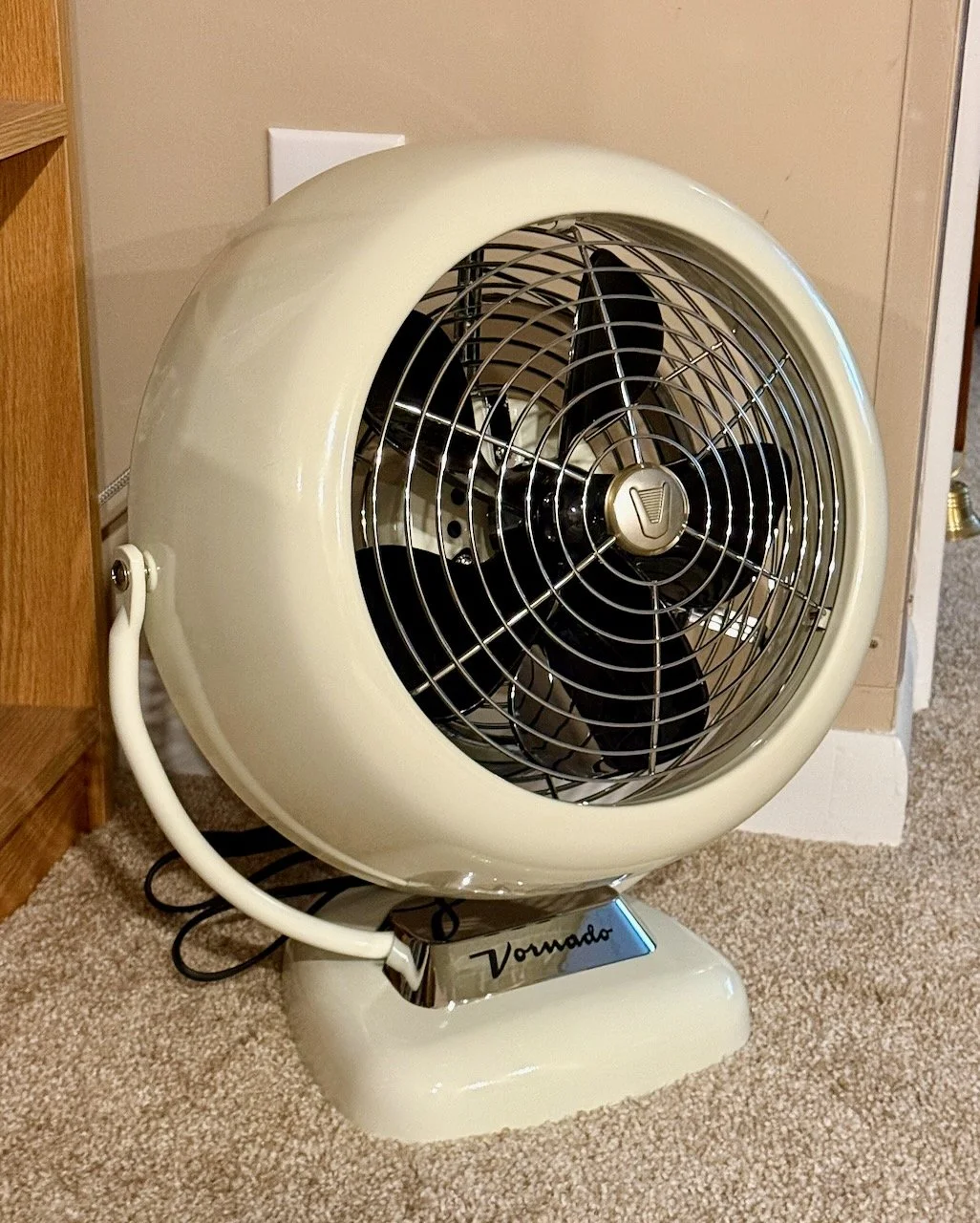
Vornado VFAN Sr Review (After Buying Two + Comparing to 633DC)

Vornado VFAN Sr Review (After Buying Two + Comparing to 633DC)

TL;DR: The Vornado VFAN Sr delivers strong, consistent airflow with a classic design, but the sound isn’t perfectly smooth. After testing two units and returning the Vornado 633DC, I found the VFAN Sr more predictable — but still not ideal if you want steady white noise.

If you’re considering the Vornado VFAN Sr, you’ve probably seen mixed opinions — especially around noise.

I ended up buying two VFAN Sr units and testing them in a real bedroom setup. I also tried the Vornado 633DC before this — and returned it because of the sound.

Here’s my honest take after using both.

Advertisement:


My Experience with the VFAN Sr

I bought two VFAN Sr fans to see how consistent they were and whether the sound varied between units.

What I found:

  • Both fans performed very similarly

  • Airflow was strong and consistent

  • Build quality felt solid and premium

That consistency was important — it confirmed that what I was hearing wasn’t just a one-off issue.

Airflow and Performance

The VFAN Sr is built for directional airflow rather than oscillation.

That means:

  • Strong, focused airflow

  • Good circulation when positioned correctly

  • Reliable performance across speeds

Compared to tower fans, it feels more powerful — especially when placed near the bed.

[IMAGE: Close-up of fan or airflow direction]

Noise and Sound Profile (Important)

This is where the VFAN Sr stands out — and where it may not be for everyone.

At lower speeds, I noticed:

  • A slightly uneven or “choppy” sound

  • Not perfectly smooth white noise

  • A more mechanical tone compared to modern fans

Both units sounded nearly identical, which tells me this is part of the design — not a defect.

If you’re sensitive to sound (like I am), this is something to pay close attention to.

My Experience with the Vornado 633DC (Returned)

Before settling on the VFAN Sr, I also tried the Vornado 633DC.

On paper, it seemed like a better fit — especially since it uses a DC motor, which is typically smoother and quieter.

But in practice, I ended up returning it.

The main issue for me was the sound:

  • The airflow noise didn’t feel smooth

  • The tone seemed to fluctuate slightly

  • It didn’t create the steady, consistent white noise I was looking for

Even though it’s designed to be quieter and more efficient, the sound profile just didn’t work for me.

That experience made me realize how important sound consistency is — and helped me evaluate the VFAN Sr more realistically.

VFAN Sr vs 633DC (Quick Comparison)

  • VFAN Sr: Strong airflow, more mechanical but consistent sound

  • 633DC: More modern design, but less consistent sound (in my experience)

If your goal is smooth, steady white noise, neither may be perfect — but the VFAN Sr felt more predictable.

Advertisement:

What the VFAN Sr Does Well

  • Strong, focused airflow

  • Durable metal construction

  • Consistent performance across units

  • Classic, long-lasting design

Where It Falls Short

  • Sound isn’t perfectly smooth

  • Not ideal for white noise purists

  • No oscillation

  • More “mechanical” sound than modern fans

Who This Fan Is Best For

You’ll like the VFAN Sr if you want:

  • Strong airflow over quietness

  • A classic fan feel

  • A durable, simple design

You may not like it if you want:

  • Smooth, consistent white noise

  • Ultra-quiet operation

  • Modern smart features

How It Compares to Other Fans

Compared to modern DC fans:

  • VFAN Sr = stronger airflow, more texture in sound

  • DC fans = smoother sound, but sometimes less character

Compared to other Vornado models:

  • Similar airflow philosophy

  • Sound profile can vary more than expected

[IMAGE: Optional comparison or second unit shot]

Advertisement:

Final Verdict

The Vornado VFAN Sr is a well-built, powerful fan — but the sound profile won’t be for everyone.

After testing two units and comparing it to the 633DC, I’d say:

  • It’s consistent

  • It’s not defective

  • But it has a distinct sound you need to be comfortable with

If airflow is your priority, it’s a great choice.

If you’re chasing perfectly smooth white noise, you may want to explore other options.

Related: VFAN Sr Noise Issues (What’s Normal vs Not)

If you’re trying to figure out whether your fan has a problem or if the sound is normal:

Vornado VFAN Sr Noise Issues? Is the “Choppy” Sound Normal?

FAQ

Is the Vornado VFAN Sr loud?
Not necessarily loud, but the sound isn’t perfectly smooth — it has a slightly uneven character.

Is the VFAN Sr good for sleeping?
It depends. If you like steady white noise, it may not be ideal.

Is the sound a defect?
Based on testing two units, the sound appears to be part of the design.

How does it compare to the Vornado 633DC?
The 633DC is more modern and efficient, but I found its sound less consistent than the VFAN Sr.

About This Site

I write about practical solutions, fitness, and systems that actually work for busy professionals — based on real experience, not theory.

Vornado VFAN Sr Noise Issues? Is the “Choppy” Sound Normal?

Vornado VFAN Sr Noise Issues? Is the “Choppy” Sound Normal?

TL;DR: If your Vornado VFAN Sr sounds slightly uneven or “choppy” on lower speeds, this can be normal due to how the motor and blade design work. However, noticeable sputtering or inconsistent speed may indicate an issue.

If you just bought a Vornado VFAN Sr and noticed the sound isn’t perfectly smooth, you’re not alone.

I ran into the same thing — and at first, I thought something was wrong with the fan.

After testing two units and paying close attention to the sound, I realized there’s an important difference between what’s normal and what’s not.

Advertisement:

My Experience with the VFAN Sr

I ended up buying two VFAN Sr units and noticed:

  • The airflow felt strong and consistent

  • The overall sound was pleasant

  • But at lower speeds, the motor didn’t sound perfectly smooth

It had a subtle “choppy” or slightly uneven rhythm compared to other fans.

What the “Choppy” Sound Means

The VFAN Sr uses a mechanical speed control and a specific blade design that creates a distinct airflow pattern.

At lower speeds, this can result in:

  • Slight variations in motor tone

  • A pulsing or uneven sound

  • Less of a steady “white noise” feel

This doesn’t necessarily mean the fan is defective.

What’s Normal vs Not Normal

Normal:

  • Slight variation in sound at low speed

  • A subtle pulsing or rhythm

  • Consistent airflow even if sound isn’t perfectly smooth

Not normal:

  • Noticeable sputtering or stuttering

  • Sudden drops in speed

  • Clicking or mechanical noises

  • Airflow that feels inconsistent

If you’re hearing the second group, that could indicate a problem.

Why the VFAN Sr Sounds Different

Unlike many modern fans that use DC motors, the VFAN Sr has a more traditional design.

This results in:

  • A more “mechanical” sound profile

  • Stronger directional airflow

  • Less digitally smoothed motor behavior

Some people prefer this — others expect a smoother sound.

What Helped Me Decide

After comparing two units:

  • Both had similar sound characteristics

  • Neither had true sputtering or failure

  • The behavior was consistent

That told me the sound was part of the design, not a defect.

Who Will Like This Fan

You’ll probably like the VFAN Sr if you want:

  • Strong airflow

  • A classic fan feel

  • A consistent, slightly mechanical hum

You may not like it if you want:

  • Ultra-smooth white noise

  • Completely uniform sound

  • Silent or near-silent operation

Advertisement:

Final Thoughts

The VFAN Sr is a high-quality fan, but the sound profile is different from modern fans.

What sounds like a “problem” at first may just be how the fan is designed.

Understanding that difference makes it much easier to decide if it’s right for you.

Related: Vornado VFAN Sr Review (After Buying Two)

If you want my full take on performance, airflow, and whether it’s worth it:

[Link to your review post]

FAQ

Is the VFAN Sr supposed to sound uneven?
Slight variation in sound at lower speeds can be normal.

What causes the choppy sound?
Motor behavior and blade design can create a pulsing sound pattern.

Should I return my VFAN Sr?
Only if you hear true sputtering, clicking, or inconsistent airflow.

Is this better than modern quiet fans?
It depends — some prefer smooth DC fans, others like the VFAN’s airflow and sound.

HomePod Keeps Cutting Out on eero? Disable Advanced Security (Fix)

HomePod Keeps Cutting Out on eero? Disable Advanced Security (Fix)

TL;DR: If your HomePod keeps cutting out or music pauses on eero, try disabling Advanced Security in the eero app. This completely fixed my issue after other common fixes didn’t work.

If your HomePod keeps cutting out, pausing music, or randomly stopping playback on an eero mesh network, you’re not alone.

I ran into this exact issue — and after trying multiple common fixes, I finally found what was actually causing it.

The surprising part: it wasn’t signal strength, and it wasn’t just mesh WiFi behavior.

Advertisement:

My Setup

  • Multiple Apple HomePods in different rooms

  • eero 7 router with a 6E extender

  • Apple Music + AirPlay multi-room audio

  • Smart home devices on the same network

The Problem

My HomePods would:

  • Start playing music normally

  • Randomly pause for 30–60 seconds

  • Then resume playback

This happened across multiple HomePods, not just one.

At the same time:

  • Other smart home devices would occasionally disconnect

  • Everything appeared to have strong WiFi signal

What I Tried (That Didn’t Fix It)

Before finding the real solution, I tried:

  • Restarting all HomePods

  • Rebooting the eero network

  • Moving devices closer to nodes

  • Disabling client steering

Disabling client steering helped slightly — but did not fully fix the issue.

What Actually Fixed It

Disable Advanced Security in the eero app.

Once I turned this off:

  • HomePods stopped cutting out completely

  • Music playback became stable

  • Multi-room audio worked consistently

  • Smart devices stopped disconnecting

The improvement was immediate and consistent.

After testing multiple fixes, this was the only change that resolved the issue across all devices.

Advertisement:

Why Advanced Security Can Cause HomePod Issues

eero Advanced Security is designed to:

  • Filter and monitor network traffic

  • Block suspicious activity

  • Improve network safety

However, it can also:

  • Interfere with continuous streaming connections

  • Interrupt AirPlay communication

  • Add latency to certain requests

HomePods rely on:

  • Stable, low-latency connections

  • Continuous streaming

  • Reliable local network communication

This makes them more sensitive to network filtering or inspection.

Why This Is Easy to Misdiagnose

This issue often looks like:

  • Weak WiFi signal

  • Mesh network instability

  • Device hardware problems

That’s why many people try:

  • Moving devices

  • Restarting networks

  • Adjusting mesh settings

In reality, the issue can be how the network is handling traffic — not the signal itself.

When You Should Try This Fix

You should consider disabling Advanced Security if:

  • Your HomePod keeps cutting out

  • Music pauses randomly

  • Multi-room audio is unstable

  • Smart home devices disconnect intermittently

  • Other fixes haven’t worked

Related: Devices Disconnecting on eero?

If you’re seeing broader issues with devices disconnecting, I break down the full problem and fix here:

Devices Keep Disconnecting on eero? Here’s What Actually Fixed My HomePod + Zoeller System Issues

Related: Should You Disable Client Steering on eero?

If you’re troubleshooting mesh behavior, I cover when client steering helps and when it doesn’t:

Should You Disable Client Steering on eero? Pros and Cons Explained

Advertisement:

Final Thoughts

In my case, this wasn’t a HomePod issue — and it wasn’t just a mesh WiFi issue either.

The real problem was how the network was filtering and managing traffic.

Disabling Advanced Security solved everything almost instantly.

If you’re dealing with this issue, it’s one of the most effective fixes to try.

FAQ

Why does my HomePod keep cutting out on eero?
It can be caused by network filtering, mesh behavior, or instability in how devices maintain connections.

Does Advanced Security affect streaming?
It can, especially for continuous connections like AirPlay or Apple Music.

Should I disable Advanced Security permanently?
If it fixes your issue, it may be worth leaving off — or testing to see if the problem returns.

Is this a common issue?
It’s not widely documented, but it can happen depending on network setup and device behavior.

About This Site

I write about practical solutions, fitness, and systems that actually work for busy professionals — based on real experience, not theory.

Why Smart Home Devices Disconnect on Mesh WiFi (eero, HomeKit, and More)

Why Smart Home Devices Disconnect on Mesh WiFi (eero, HomeKit, and More)

TL;DR: Smart home devices often disconnect on mesh WiFi systems because they don’t handle network switching (between nodes or bands) well. Features like client steering can improve speed but reduce connection stability for some devices.

If you’ve ever had smart home devices randomly go offline — even when your WiFi signal looks strong — you’re not alone.

This is especially common with mesh WiFi systems like eero, where devices are constantly being optimized for performance.

The problem is: not all devices handle that optimization well.

Advertisement:

What Causes Smart Home Devices to Disconnect on Mesh WiFi?

Mesh WiFi systems work by distributing multiple nodes throughout your home. These nodes communicate with each other to provide seamless coverage.

To optimize performance, the system may:

  • Move devices between nodes

  • Switch devices between 2.4 GHz and 5 GHz bands

  • Adjust connections dynamically

This works great for phones and laptops.

But for many smart home devices, it creates problems.

Why Smart Home Devices Struggle with Mesh Networks

Many smart home devices are designed for simple, stable connections — not constant network changes.

Unlike phones or laptops, they:

  • Don’t roam well between access points

  • May not support advanced WiFi features

  • Expect to stay connected to a single network path

When a mesh system tries to move them:

  • The connection may briefly drop

  • The device may fail to reconnect properly

  • Apps may show the device as offline

Common Devices Affected

This issue often shows up with:

  • Smart speakers (HomePod, Alexa, etc.)

  • Smart thermostats

  • Security cameras

  • Sump pump monitors (like Zoeller AquaNot systems)

  • Smart plugs and sensors

In my case, I saw:

  • HomePods cutting out during playback

  • A Zoeller smart sump pump system dropping connection intermittently

The Role of Client Steering and Band Steering

Two key features often involved are:

Client Steering
Moves devices between mesh nodes to improve signal strength

Band Steering
Moves devices between 2.4 GHz and 5 GHz networks

While these features improve speed and efficiency, they can:

  • Interrupt active connections

  • Cause brief disconnects

  • Create instability for sensitive devices

Advertisement:

Signs Your Issue Is Mesh WiFi Related

You may be dealing with a mesh-related issue if:

  • Devices randomly go offline and come back

  • Streaming cuts out (music, video, etc.)

  • Apps lose connection to devices

  • Problems happen across multiple devices

  • Signal strength appears strong

How to Fix Smart Home Devices Disconnecting

Here are a few things that can help improve stability:

Disable Client Steering
This prevents devices from being moved between nodes automatically

Improve Node Placement
Keep devices within strong range of a single node

Avoid Overlapping Coverage Zones
Devices placed between nodes may switch more frequently

Keep Devices on the Same Network
Avoid splitting SSIDs if possible

Update Firmware
Ensure both your router and devices are up to date

What Fixed It for Me

In my setup, disabling client steering immediately stabilized everything.

  • HomePods stopped cutting out

  • Smart devices stopped disconnecting

  • Connections became consistent

If you want a full breakdown of that fix, I covered it here:
Devices Keep Disconnecting on eero? Here’s What Fixed My HomePod + Zoeller System

Should You Disable Client Steering?

It depends.

If you’re having issues:

  • It’s one of the easiest and most effective things to try

If everything is working:

  • You may want to leave it enabled for better performance

I break down the pros and cons in more detail here:
Should You Disable Client Steering on eero? Pros and Cons Explained

Advertisement:

Final Thoughts

Mesh WiFi systems are designed for performance — but not all devices are built to handle that level of optimization.

If your smart home devices are disconnecting, the issue is often not signal strength, but how the network is managing connections.

Understanding that difference can save a lot of frustration.

FAQ

Why do smart home devices disconnect on mesh WiFi?
Because they may not handle switching between nodes or frequency bands well.

Does eero cause smart home issues?
Not directly, but features like client steering can create instability for certain devices.

Should I disable client steering?
If you’re experiencing disconnects, it’s worth testing — it often improves stability.

Why does my WiFi look strong but devices still disconnect?
Signal strength isn’t the issue — connection stability during network transitions is.

About This Site

I write about practical solutions, fitness, and systems that actually work for busy professionals — based on real experience, not theory.

Should You Disable Client Steering on eero? Pros and Cons Explained

Should You Disable Client Steering on eero? Pros and Cons Explained

TL;DR: Disabling client steering on eero can improve stability for devices like HomePods and smart home systems, but it may reduce automatic network optimization. If you’re experiencing disconnects, it’s worth testing.

If you’re using an eero mesh WiFi system and running into issues like devices disconnecting, HomePods cutting out, or smart home devices going offline, you may have come across a setting called “client steering.”

So the question is: should you disable it?

The answer depends on your setup — and what problems you’re trying to solve.

Advertisement:

What Is Client Steering on eero?

Client steering is a feature in eero that automatically moves devices between different WiFi nodes and frequency bands (like 2.4 GHz and 5 GHz).

The goal is simple:

  • Improve performance

  • Balance network load

  • Keep devices connected to the strongest signal

In theory, this makes your network faster and more efficient.

Why Client Steering Can Cause Problems

While client steering works well for many devices, it can cause issues for certain types of connections.

Some devices don’t handle being moved between nodes very well.

This can result in:

  • Devices randomly disconnecting

  • Streaming interruptions (like HomePods or AirPlay)

  • Smart home devices appearing offline

  • Apps losing connection even when WiFi signal is strong

This is especially common with:

  • Smart speakers

  • IoT devices

  • Older or simpler WiFi hardware

When You SHOULD Disable Client Steering

You should consider turning off client steering if:

  • Your HomePod keeps cutting out

  • Smart home devices randomly disconnect

  • Devices frequently go offline and reconnect

  • You have a stable setup but inconsistent performance

In my case, disabling client steering:

  • Stopped HomePod interruptions immediately

  • Fixed connection drops on a Zoeller smart sump pump system

  • Made the network more stable overall

Advertisement:

When You Should KEEP Client Steering Enabled

Client steering is still useful in many situations.

You may want to leave it on if:

  • You have a large home with many nodes

  • Your devices move frequently (phones, laptops, tablets)

  • You’re not experiencing any connection issues

  • You want automatic optimization without manual setup

For general browsing and mobile devices, client steering often works well.

Pros of Disabling Client Steering

  • More stable connections for smart home devices

  • Fewer random disconnects

  • Better performance for streaming (AirPlay, HomePod, etc.)

  • Predictable device behavior

Cons of Disabling Client Steering

  • Devices won’t automatically switch to the strongest node

  • Possible reduced performance for mobile devices

  • Less network optimization overall

  • May require better node placement

How to Disable Client Steering on eero

  1. Open the eero app

  2. Go to Settings

  3. Find “Client Steering”

  4. Toggle it off

The change takes effect immediately — no restart required.

Advertisement:

Final Thoughts

Client steering is designed to improve your network — but it’s not perfect for every device.

If you’re experiencing random disconnects, especially with smart home devices, disabling it is one of the easiest and most effective fixes to try.

For me, client steering helped slightly, but Advanced Security had the biggest impact.

Related: Devices Keep Disconnecting on eero?

If you’re troubleshooting HomePods cutting out or smart devices dropping connection, I wrote a full breakdown of what caused the issue and how I fixed it here:

Devices Keep Disconnecting on eero? Here’s What Fixed My HomePod + Zoeller System


To understand the underlying issue with mesh WiFi and smart devices, see this breakdown:

Why Smart Home Devices Disconnect on Mesh WiFi (eero, HomeKit, and More)

FAQ

Why do devices disconnect when client steering is on?
Because devices are moved between nodes or bands, which can briefly interrupt connections.

Does disabling client steering slow down WiFi?
Not necessarily. It may reduce optimization, but can improve stability for certain devices.

Should I disable client steering permanently?
If it fixes your issues, yes. Otherwise, it’s fine to leave enabled.

Can I turn client steering back on later?
Yes — you can toggle it anytime in the eero app.