If your Wi-Fi feels slow or unreliable, your iPhone 16 has a hidden built-in scanner that can help diagnose interference, crowded channels, and weak signal strength.
To scan Wi-Fi networks on an iPhone 16, install AirPort Utility, enable Wi-Fi Scanner in Settings > AirPort Utility, then open the app and tap Wi-Fi Scan. You can view nearby networks, channels, and signal strength to troubleshoot interference.
How to Enable the Hidden Wi-Fi Scanner on iPhone 16
Most people don’t realize Apple includes a Wi-Fi analyzer inside the AirPort Utility app.
Step 1
Download AirPort Utility from the App Store.
Step 2
Enable the hidden scanner:
Open Settings
Scroll down and tap AirPort Utility
Toggle on Wi-Fi Scanner
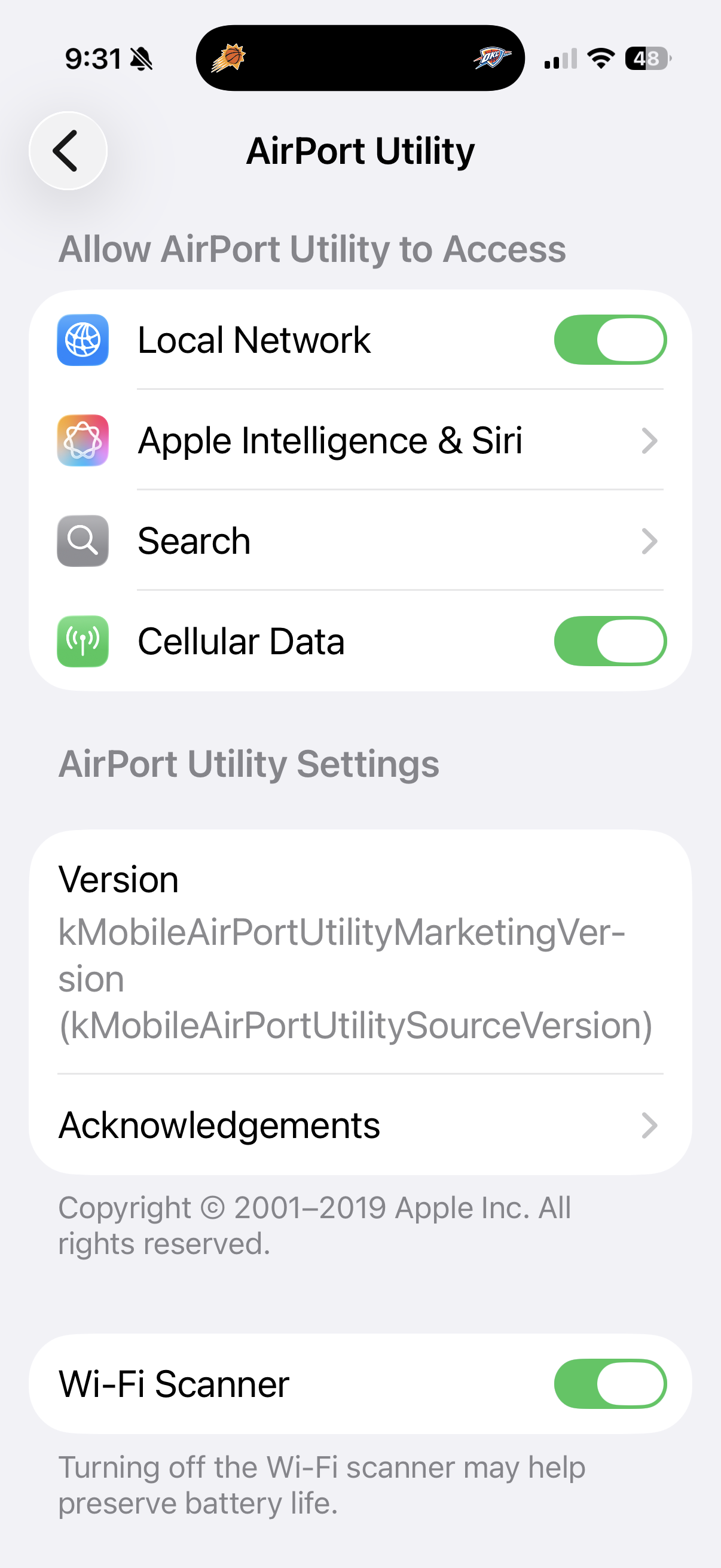
That unlocks the scanner.
How to Scan Nearby Wi-Fi Networks with AirPort Utility
Once enabled:
Open AirPort Utility
Tap Wi-Fi Scan in the top-right corner
Choose a scan duration (5–30 seconds works well)
Tap Scan
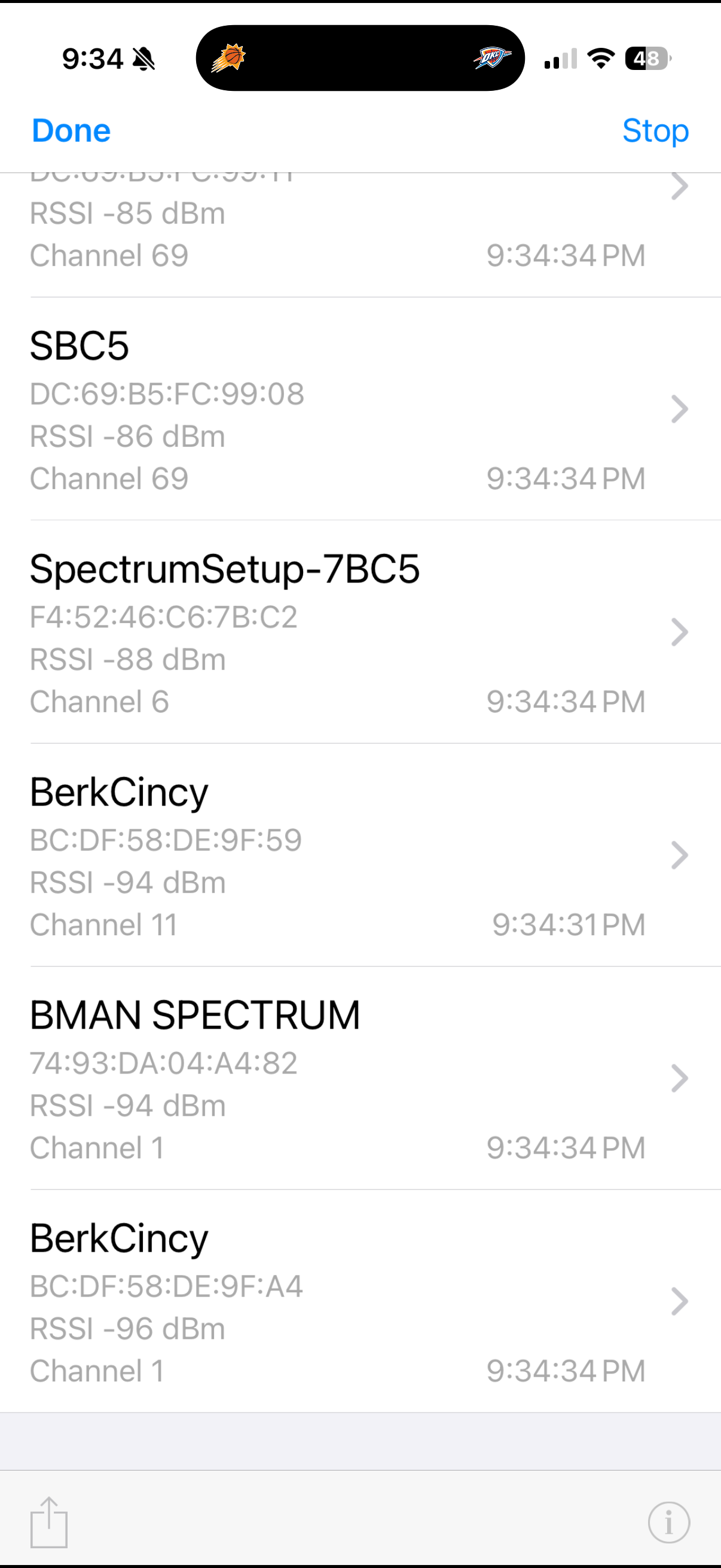
You’ll see nearby networks and useful details including:
Network names (SSID)
Signal strength (RSSI)
Channel usage
Frequency bands (2.4 GHz and 5 GHz)
How to Read RSSI Signal Strength Results
Signal strength is measured in dBm and shown as negative numbers.
-30 to -50 dBm → Excellent
-50 to -67 dBm → Very good
-67 to -70 dBm → Usable
Below -70 dBm → Weak signal / potential issues
The closer the number is to zero, the stronger the signal.
How to Find the Best Wi-Fi Channel
One of the best reasons to use this scanner is checking for crowded channels.
For 2.4 GHz
Use one of these channels:
Channel 1
Channel 6
Channel 11
These don’t overlap and usually perform best.
For 5 GHz
Look for a less congested channel in your router settings.
If several nearby networks are using the same channel, changing yours may improve speed and reliability.
Why AirPort Utility Helps Troubleshoot Slow Wi-Fi
Channel interference can cause:
Slow internet speeds
Buffering
Dropped connections
Weak coverage in some rooms
Smart devices disconnecting
A quick Wi-Fi scan often reveals the problem.
Use It to Optimize Router Placement
A bonus trick:
Walk around your house while scanning and watch RSSI change.
This can help identify:
Dead zones
Better router placement
Ideal mesh node placement
AirPort Utility Wi-Fi Scanner Not Showing? Try This
If you don’t see the scanner:
Check that Wi-Fi Scanner is enabled
Go to:
Settings > AirPort Utility > Wi-Fi Scanner
Make sure it’s turned on.
Update iOS
Older software can sometimes cause issues.
Reinstall AirPort Utility
Delete and reinstall the app.
Restart Your iPhone
Simple, but it often fixes it.
Does This Work on iPhone 16?
Yes — the Wi-Fi scanner works on iPhone 16 and current iOS versions, even if you do not use an Apple AirPort router.
Final Thoughts
Apple quietly includes one of the easiest Wi-Fi diagnostic tools right on your iPhone.
If you’re troubleshooting slow internet or optimizing your home network, the hidden scanner in AirPort Utility is worth using.
Once you try it, you may never guess at Wi-Fi problems again.
If you’re diagnosing broader Apple connectivity issues, you may also like my guide on fixing iCloud Drive stuck on “Waiting to Update” on Mac, which walks through another common Apple networking-related issue.
Frequently Asked Questions
Does iPhone have a built-in Wi-Fi analyzer?
Yes. Apple includes one inside AirPort Utility, though it’s hidden by default.
Can I see nearby Wi-Fi channels on iPhone 16?
Yes. AirPort Utility shows nearby networks, channels, and signal strength.
What is a good RSSI signal strength?
Generally -50 to -67 dBm is very good.
Does AirPort Utility work without an Apple router?
Yes. The scanner works even if you do not use an Apple AirPort router.