Devices Keep Disconnecting on eero? Here’s What Fixed My HomePod + Zoeller System

Devices Keep Disconnecting on eero? Here’s What Actually Fixed My HomePod + Zoeller System Issues

TL;DR: If your HomePod keeps cutting out or devices are disconnecting on eero, try disabling Advanced Security. This completely fixed my issue after other common fixes didn’t work.

If your HomePod keeps cutting out, music pauses randomly, or smart home devices disconnect on an eero mesh network, you’re not alone.

I ran into this exact issue across multiple devices — and what made it frustrating was that the usual fixes didn’t fully solve it.

This is a common issue with mesh WiFi systems like eero, where devices may disconnect or behave inconsistently even when signal strength appears strong.

Advertisement:

My eero Mesh WiFi Setup (HomePod + Smart Devices)

  • Multiple Apple HomePods in different rooms

  • eero 7 router with a 6E extender (mesh network)

  • Zoeller AquaNot 508 sump pump system using the Z Control app

  • Devices spread across various distances from nodes

HomePod Cutting Out and Devices Disconnecting on eero

I started noticing that my HomePods would:

  • Play music normally

  • Suddenly stop for 30–60 seconds

  • Then resume playback

This happened across multiple HomePods — not just one.

At the same time, my Zoeller system would:

  • Randomly show as disconnected

  • Lose connection intermittently

  • Then reconnect on its own

At first, these seemed like unrelated issues.

What I Tried First (That Didn’t Fully Fix It)

Before finding the real solution, I tried:

  • Restarting all HomePods

  • Rebooting the eero network

  • Moving devices closer to nodes

  • Disabling client steering

Disabling client steering did improve stability slightly — but it did NOT fully resolve the issue.

Advertisement:

What Actually Fixed It (Final Fix)

Disable Advanced Security in the eero app.

Once I turned this off:

  • HomePods stopped cutting out completely

  • Music playback became stable

  • The Zoeller system stopped disconnecting

  • Smart home devices stayed consistently online

The improvement was immediate and consistent.

After testing multiple fixes, this was the only change that resolved the issue across all devices.

Why Advanced Security Can Cause Issues

eero’s Advanced Security feature monitors and filters network traffic to improve safety.

While useful, it can:

  • Interfere with continuous streaming connections

  • Interrupt device-to-device communication

  • Delay or block certain requests

Devices like HomePods rely on:

  • Stable local network communication

  • Low-latency streaming

  • Consistent connections

This can make them more sensitive to network filtering or inspection.

Why This Looked Like a Mesh WiFi Problem

At first, this issue looked like a typical mesh WiFi problem:

  • Devices disconnecting

  • Playback interruptions

  • Random instability

That’s why fixes like client steering seemed relevant.

But in this case, the real issue was how the network was handling traffic — not just how devices were moving between nodes.

When You Should Try This Fix

You should consider disabling Advanced Security if:

  • Your HomePod keeps cutting out

  • Smart home devices randomly disconnect

  • Music pauses or buffers without explanation

  • Common fixes (like restarting or client steering) don’t work

Related: Should You Disable Client Steering on eero?

If you’re trying to decide whether client steering is part of your issue, I break down the pros and cons here:

Should You Disable Client Steering on eero? Pros and Cons Explained

Related: Why Devices Disconnect on Mesh WiFi

If you want to understand the underlying cause behind these types of issues, I explain it here:

Why Smart Home Devices Disconnect on Mesh WiFi (eero, HomeKit, and More)

Advertisement:

Final Thoughts

In my case, this wasn’t just a HomePod issue — and it wasn’t purely a mesh WiFi issue either.

The real problem was how the network was managing and filtering traffic.

Disabling Advanced Security solved everything almost immediately.

If you’re dealing with random disconnects on eero, this is one of the most effective fixes to try.

FAQ

Why does my HomePod keep cutting out on eero?
It can be caused by network instability, mesh behavior, or features like Advanced Security interfering with streaming.

Does disabling Advanced Security affect my network?
It removes some filtering features, but can improve stability for certain devices.

Should I disable client steering or Advanced Security?
If you’re experiencing disconnects, try both — but Advanced Security may have a bigger impact.

Why do devices disconnect even with strong WiFi signal?
Because the issue is often connection stability, not signal strength.

Related Gear

Apple HomePod: https://www.apple.com/homepod/
eero Mesh WiFi Systems: https://eero.com

About This Site

I write about practical solutions, fitness, and systems that actually work for busy professionals — based on real experience, not theory.
Netflix freezing or hesitating on Apple TV 4th Generation

Have you had issues with your Netflix App on the 4th Generation Apple TV? Is it constantly freezing, hesitating, buffering, or loading while trying to play a title? Have you tried all of these solutions to no avail? (Netflix Knowledge Base)

1. Restart your Apple TV

  1. Unplug your Apple TV and the TV it's connected to for at least 2 minutes.

  2. Plug both devices back in.

  3. Turn both devices back on.

  4. Try Netflix again.

2. Reinstall the Netflix App

  1. From the Apple TV home screen, highlight the Netflix app.

  2. Press and hold in the center of the touchpad until the Netflix icon starts to shake.

  3. Press the play/pause button to delete the app

  4. Select Delete again to confirm

  5. Reinstall Netflix from the App Store and try Netflix again

3. Update Apple TV Software

If your Apple TV isn't up to date with the most current software updates, it can cause streaming issues. To check for updates on your Apple TV:

  1. From the Apple TV home screen, select Settings.

  2. Select System.

  3. Select Software Updates.

  4. Select Update Software. If your firmware is out of date, you will see the option to Download and Install. Select it to upgrade your Apple TV firmware. Once you've downloaded any available updates (or if there were no updates available), try Netflix again.

If these do not work, there is another, simple solution that may resolve this issue. 

Are you connected to the internet via ethernet or wifi? If you answered ethernet, then this maybe your culprit. Users are reporting that there is a speed/duplex issue with the ethernet port on the Apple TV 4. While your Speedtest may yield 80mbps download rates, Netflix on the Apple TV is particularly vulnerable to the issue.

Solution:

Switch to Wifi. To do this, simply unplug your ethernet cable and go to Settings > Network. On Apple TV (2nd or 3rd generation), go to Settings > General > Network. Choose the name of a compatible Wi-Fi network to join. If asked, enter your Wi-Fi password. (Apple Wifi Help)

This fixed the issue for us. We dealt with this issue for 2 months, while Netflix worked perfectly on all devices with the exception of the Apple TV. Since I have switched to Wifi, I have had no issues.

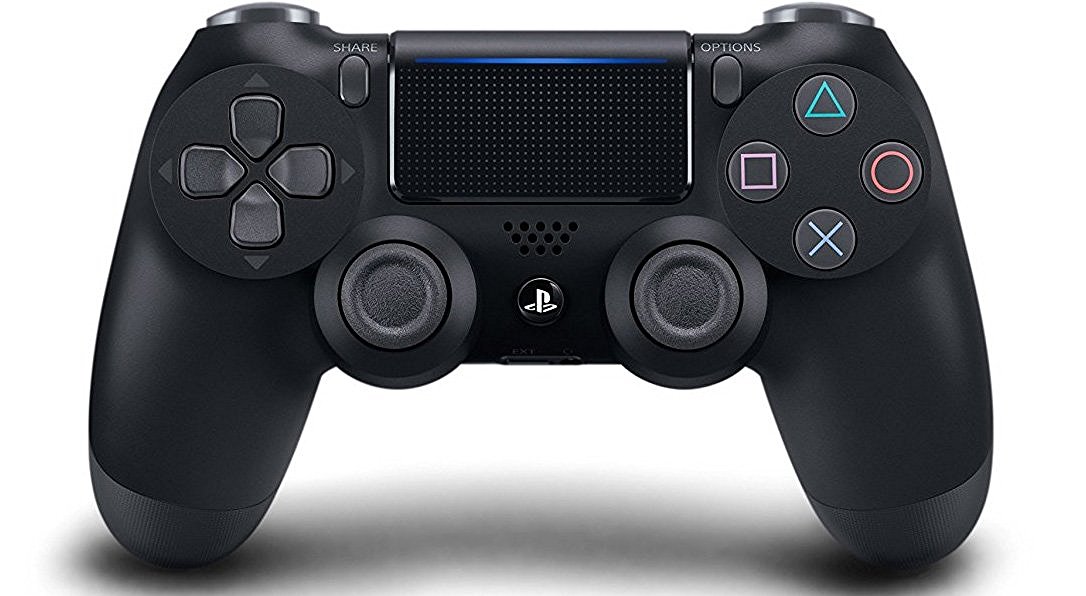
Playstation 4 (PS4) Wireless Bluetooth Controller keeps dropping connection?

Are you having problems with your Playstation 4 wireless controller? Are you playing Star Wars: Battlefront and your controller randomly disconnects? You are not alone. 

The Trouble With Bluetooth Technology

The Playstation 4 uses Bluetooth wireless technology, which without interference, should have no issues operating in a 20 ft range and has a maximum range of 60 meters. Bluetooth operates on the 2.4Ghz spectrum which can make it quite susceptible to interference. 

Troubleshooting

If you are having issues, work through a process of elimination find the culprit. 

  • First, plug the controller directly into the PS4 via the USB Cable? Does the controller work if hard wired to the PS4?

  • Second, disconnect other Bluetooth devices in the vicinity. This includes headset, speaker, and remotes. See if this fixes the issue. If not then..

  • Disconnect your WiFI. WIFI also operates on the same spectrum. If this fixes the issue, try changing the channel on your WIFI router or reposition the PS4 in your cabinet to minimize interference.

Chances are your hardware is fine, you just need to find the device that is interfering with PS4's Bluetooth connection.


Upset that the NES Classic Edition Controller Cord Is Too Short? Here Are Some Easy Options To Fix The Problem

If you were lucky enough to get your hands on a Nintendo Classic this Christmas, you might have noticed one big problem: the cord that runs from the controller to the console is terribly short.

This leaves you with a few options:

  1. Get a 30 foot HDMI Cable to run from the console to the TV so you can move the Nintendo to wherever you are sitting.

  2. Get an usb extension cable so that you can leave that new console underneath the TV Set. If one isn't enough - just add 2!

  3. Get an wireless remote control for the new Nintendo. 8bitdo makes a wireless bluetooth controller specifically designed for the Nintendo Classic. The controller will be available December 16th, and you can buy it on Amazon.

Want more information about the Nintendo Classic? Click here.

Responsive Web Design: Are We Missing The Point?

There is no shortage of articles about responsive web design (RWD) out there. It seems like every time that I pick up a trade magazine (automotive industry), there is an article about responsive web design and if you are not doing it - you might as well close your doors. Of course that is a drastic example, but for the most part many of these articles really are missing the point. Too often we get caught up in trends, the latest and greatest, and fail to truly address the root need of the products we “must have.” So, really, why does my website need to be responsive? First, lets dig a little deeper and learn some definitions.

RWD has a different meaning for marketers than it does web developers.  To web developers the aspects that define a website as responsive are technical in nature. How content is displayed and by what method is just as import as the look and feel of the site.  Ethan Marcotte, a web-designer out of Boston, and an authority on the subject, maintains that a responsive website must utilize certain techniques, such as media queries, flexible images, and fluid layouts to make a website properly functions across different environments. If you do not have any idea what that means, that ok. This is not a discussion about the technical implementation of a website, but it is important to recognize the technical aspects of this concepts as they are seldom discussed in conversations about RWD, especially in the car business. (I am leaving "Adaptive" completely out of this entry)

Why are they important? They are important because if your website does not load quickly or properly you are losing money - regardless of how pretty and functional it looks.  Efficient web design has not been a top priority for automotive web vendors over the past several years. The vast majority of dealer websites still focus on an cumbersome desktop model, and with broadband penetration at over 70% website, regardless of how improper the design, pages will still load in an acceptable amount of time. However, on slower connections, the experience will not be so acceptable.

 Typically we are given 3 choices as the solution for our mobile customers:

  • mobile formatted website, usually via a subdomain i.e. m.stokebrand.com

  • adaptive website, which relies on a library of device resolutions, same domain regardless of the device

  • responsive website, which resizes for the device and typically uses the same domain regardless of the device

Today, mobile sales representatives are quick to dismiss the old ways of mobile formatted website in favor of the “new” responsive model. In fact, the pitches are very aggressive (or passive aggressive), and are quick to discount the mobile formatted website altogether. Like I said earlier, if you are not doing “responsive” design  - you might as well close your doors. Bottom line, if this is the pitch you get – feel free to laugh or hang up the phone, because… They are missing the point.

The purpose of your mobile website should be to deliver the best user experience possible for your customer – regardless of the technique. For marketers, this can be further broken down into 2 elements:

  • Speed

  • Content (content, functionality, and design) 

Speed. Everyone has smartphones with broadband access, so why is speed important? Easy, not everyone has fast broadband access.  4G networks are not available everywhere, in fact only 22% of users have a 4G connection, and 40% of the time they do not have 4G access. If you are located in the city, you probably have better usage numbers than this, but it is still very likely that users will be connecting to your mobile website on a slower-than-4G connection – so design for it. Start by:

  •  Choosing a vendor that understands this and can offer a mobile product that is responsive to typical and non-typical mobile connection speeds

  •  Choose a template that is light on high-resolution graphics and backgrounds, and use color fills whenever possible.

  • Test, test, test. Tell you spouse. Ask your boss. Ask his teen-age daughter. There is no better way to find performance issues than to have mobile power users test it for you. This is true for performance issues as much as it is “hiveminded” design flaws.

Content. Your index page on your mobile site should never mirror your desktop site unless you only have one page on your desktop site. Even then it still shouldn’t look the same and should at least serve the content differently. The user expectations for a desktop site and a mobile site are different – and both must serve their content effectively. Desktop users are very likely on a broadband connection, and have a huge screen with lots of real estate. Mobile users are on a smaller screen with a slower connection. How will you change your design to accommodate this (check out my upcoming posting on mobile site design tips for more in depth ideas)? To start you can:

  • Visit top 100 sites. See what the big boys are doing. This is not to say they are all doing it right, but it certainly will expose you to different designs and techniques.

  • Visit your competition, see what you like and don’t like. You are an expert critic here. Don’t repeat their mistakes.

  •  Do not be pressured to switch to a “responsive” site just because it’s the thing to do. If they tell you that everyone is doing it, tell them that only 12% of the top 10,000 website are actually responsive and send them this link.

RWD is a very effective technique, and is probably the best way to display your company’s digital storefront across multiple devices – if done correctly. The problem is that it is rarely done correctly, and you have to pick out the best vendor or designer available to you at the time. So if that means your mobile site has a separate mobile subdomain, so be it! What is for certain is that when your customers have a terrible mobile experience, they are leaving for good, responsive or not.