
Canon R6 Mark II, Raynox 250, 100mm Macro, Kenko 11mm Extender
Netflix freezing or hesitating on Apple TV 4th Generation
Have you had issues with your Netflix App on the 4th Generation Apple TV? Is it constantly freezing, hesitating, buffering, or loading while trying to play a title? Have you tried all of these solutions to no avail? (Netflix Knowledge Base)
1. Restart your Apple TV
Unplug your Apple TV and the TV it's connected to for at least 2 minutes.
Plug both devices back in.
Turn both devices back on.
Try Netflix again.
2. Reinstall the Netflix App
From the Apple TV home screen, highlight the Netflix app.
Press and hold in the center of the touchpad until the Netflix icon starts to shake.
Press the play/pause button to delete the app
Select Delete again to confirm
Reinstall Netflix from the App Store and try Netflix again
3. Update Apple TV Software
If your Apple TV isn't up to date with the most current software updates, it can cause streaming issues. To check for updates on your Apple TV:
From the Apple TV home screen, select Settings.
Select System.
Select Software Updates.
Select Update Software. If your firmware is out of date, you will see the option to Download and Install. Select it to upgrade your Apple TV firmware. Once you've downloaded any available updates (or if there were no updates available), try Netflix again.
If these do not work, there is another, simple solution that may resolve this issue.
Are you connected to the internet via ethernet or wifi? If you answered ethernet, then this maybe your culprit. Users are reporting that there is a speed/duplex issue with the ethernet port on the Apple TV 4. While your Speedtest may yield 80mbps download rates, Netflix on the Apple TV is particularly vulnerable to the issue.
Solution:
Switch to Wifi. To do this, simply unplug your ethernet cable and go to Settings > Network. On Apple TV (2nd or 3rd generation), go to Settings > General > Network. Choose the name of a compatible Wi-Fi network to join. If asked, enter your Wi-Fi password. (Apple Wifi Help)
This fixed the issue for us. We dealt with this issue for 2 months, while Netflix worked perfectly on all devices with the exception of the Apple TV. Since I have switched to Wifi, I have had no issues.
Playstation 4 (PS4) Wireless Bluetooth Controller keeps dropping connection?
Are you having problems with your Playstation 4 wireless controller? Are you playing Star Wars: Battlefront and your controller randomly disconnects? You are not alone.
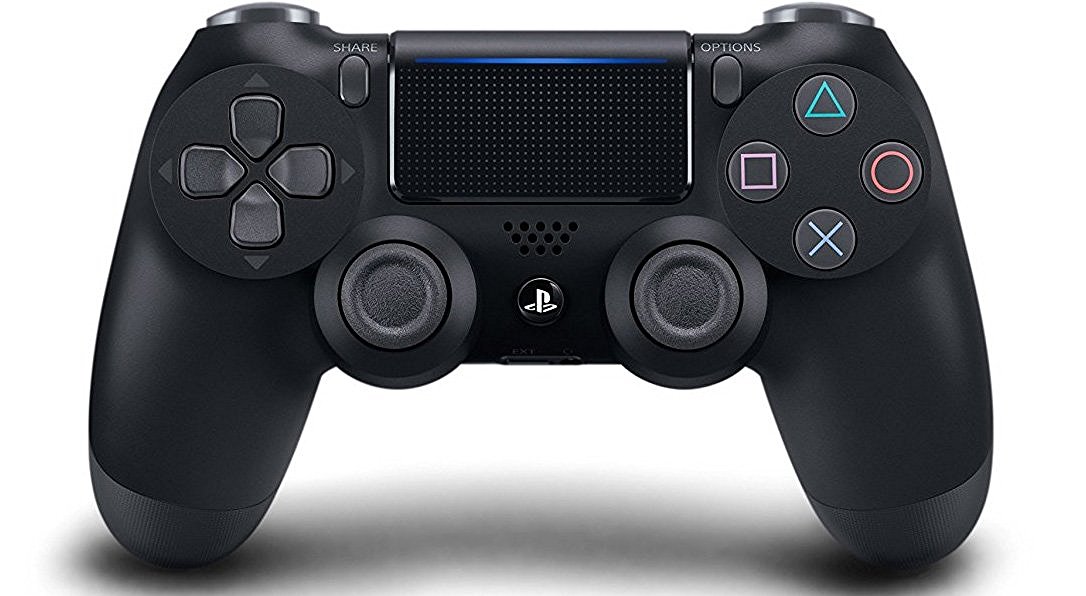
The Trouble With Bluetooth Technology
The Playstation 4 uses Bluetooth wireless technology, which without interference, should have no issues operating in a 20 ft range and has a maximum range of 60 meters. Bluetooth operates on the 2.4Ghz spectrum which can make it quite susceptible to interference.
Troubleshooting
If you are having issues, work through a process of elimination find the culprit.
First, plug the controller directly into the PS4 via the USB Cable? Does the controller work if hard wired to the PS4?
Second, disconnect other Bluetooth devices in the vicinity. This includes headset, speaker, and remotes. See if this fixes the issue. If not then..
Disconnect your WiFI. WIFI also operates on the same spectrum. If this fixes the issue, try changing the channel on your WIFI router or reposition the PS4 in your cabinet to minimize interference.
Chances are your hardware is fine, you just need to find the device that is interfering with PS4's Bluetooth connection.
Where is the Lateral Pterygoid?
The lateral pterygoid is located deep inside your jaw, and is a key muscle in the function of chewing or mastication. It function is pull the condyle forward, in essence opening the jaw.
The muscle itself is located deep inside the face and it not easily accessible. The actual position is inside of the jawbone, making massage very difficult from the outside.

The lateral pterygoid can be reached inside of the mouth via this method.
Here's a great video from KenHub on how the muscle works. This muscle has a bad reputation for being a key culprit in those suffering from TMJ or TMD pain.
Upset that the NES Classic Edition Controller Cord Is Too Short? Here Are Some Easy Options To Fix The Problem
If you were lucky enough to get your hands on a Nintendo Classic this Christmas, you might have noticed one big problem: the cord that runs from the controller to the console is terribly short.

This leaves you with a few options:
Get a 30 foot HDMI Cable to run from the console to the TV so you can move the Nintendo to wherever you are sitting.
Get an usb extension cable so that you can leave that new console underneath the TV Set. If one isn't enough - just add 2!
Get an wireless remote control for the new Nintendo. 8bitdo makes a wireless bluetooth controller specifically designed for the Nintendo Classic. The controller will be available December 16th, and you can buy it on Amazon.
Want more information about the Nintendo Classic? Click here.